
AI configuration
Only team admins can open AI config. In a personal account, you set AI on your account page instead. See Account settings.
What the three features do
Section titled “What the three features do”Each feature is a row you can open:
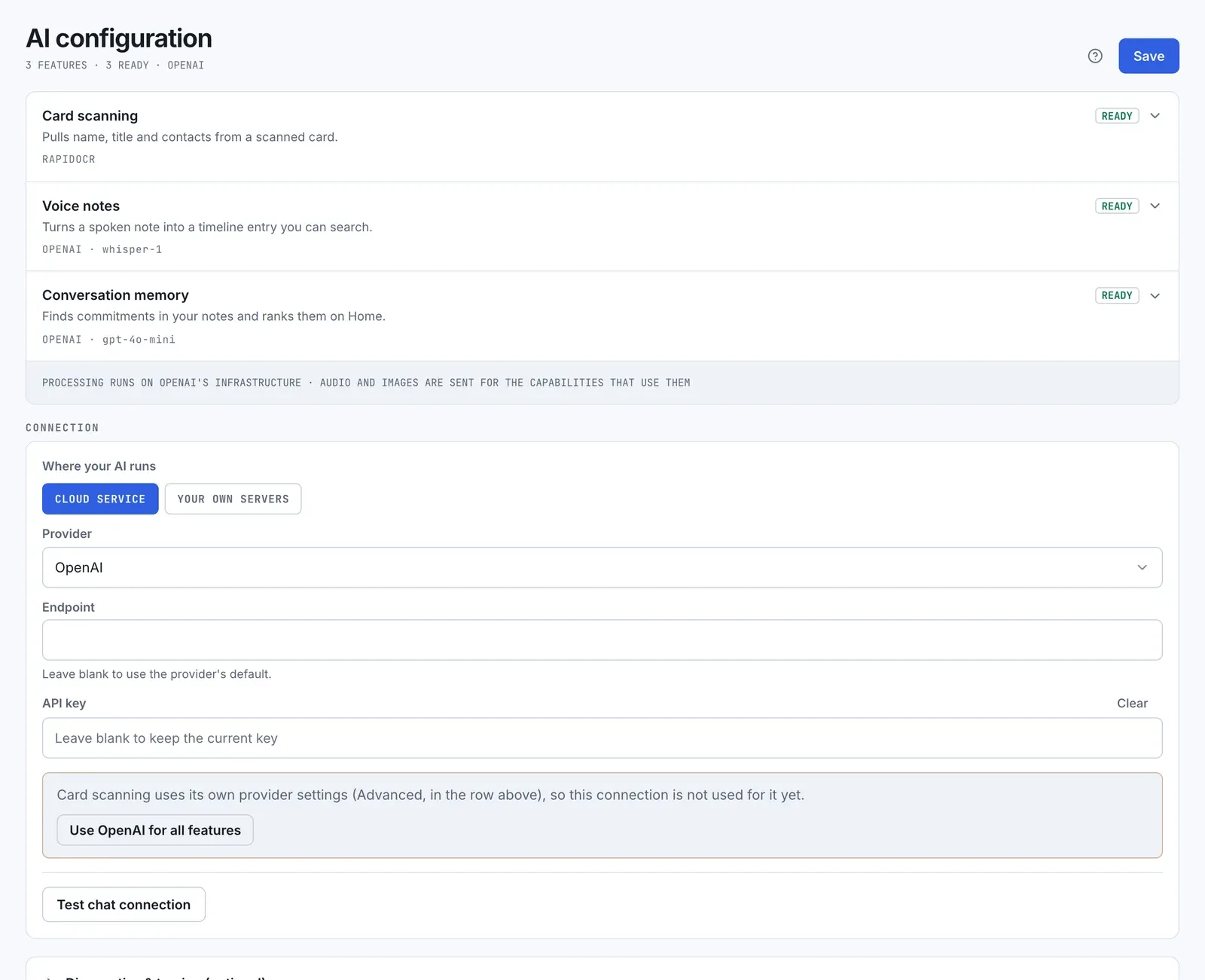
- Card scanning: pulls name, title and contacts from a scanned card. See Capture.
- Voice notes: turns a spoken note into a timeline entry you can search. See Notes and voice memos.
- Conversation memory: finds commitments in your notes and ranks them on Home.
Each row has a status badge: Ready, Not set up, or Needs setup. A row that needs setup says what’s wrong under its name. The collapsed row also names the provider and model it uses.
Open a row to choose its model.
Set up the connection
Section titled “Set up the connection”The connection is what every feature uses unless you give it its own provider.
- Under Where your AI runs, choose Cloud service or Your own servers.
- For Cloud service, pick a Provider: OpenAI or Anthropic.
- Fill in the Endpoint. For a cloud service, leave it blank to use the provider’s default. For your own servers, it’s required: it’s where your server is reachable from the app.
- Paste an API key. If a key is already saved, leaving the field blank keeps it, and Clear removes it. Your own servers need a key too.
- Select Save.
Use a different provider for one feature
Section titled “Use a different provider for one feature”Open a feature’s row, then Advanced — use a different provider for this:
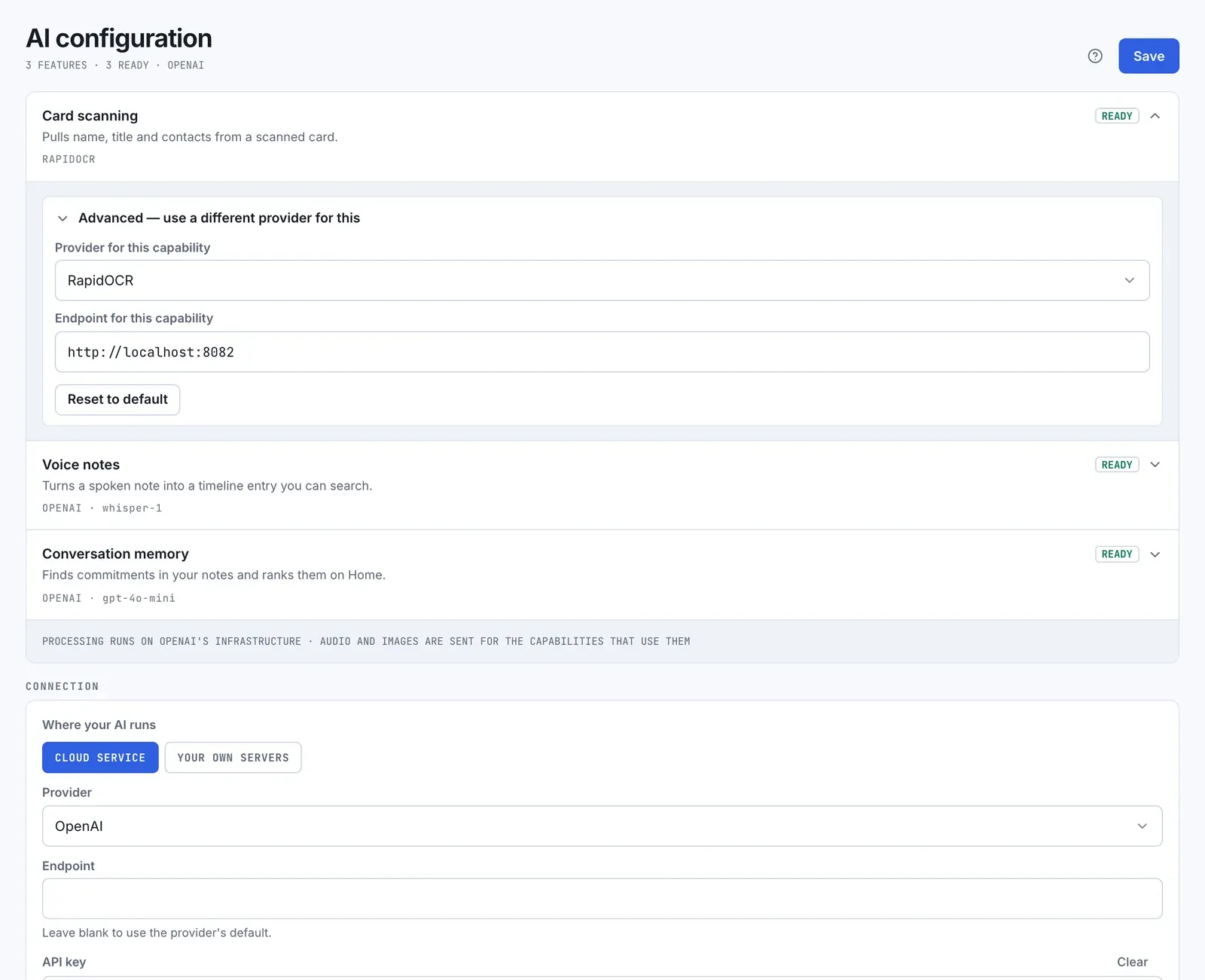
- Provider for this capability: pick a provider, or “Use the org default” to follow the connection.
- Endpoint for this capability: where that provider is reachable.
- API key for this capability: a separate key. It isn’t shown for whisper.cpp or RapidOCR, which take none.
- Reset to default: makes the feature follow the connection again, and drops its saved key.
Each feature offers only the providers that can do that job:
| Feature | Providers |
|---|---|
| Card scanning | OpenAI, Anthropic, RapidOCR |
| Voice notes | OpenAI, whisper.cpp |
| Conversation memory | OpenAI, Anthropic, Unsloth Studio |
When the connection is a cloud service and a feature has its own settings, a notice under the connection says which features don’t use it yet. Its Use … for all features button, which names your provider, clears every feature’s own settings so they all follow the connection. Select Save afterwards.
Test it
Section titled “Test it”Test chat connection sends one message to the provider Conversation memory uses, and reports whether it answered. It tests the saved settings, so select Save first. It doesn’t test Card scanning or Voice notes: their status badges are the check for those.
Where your data goes
Section titled “Where your data goes”A line under the features says where processing happens, based on the connection:
- With an endpoint set, everything is processed at that endpoint.
- With a cloud provider and no endpoint, processing runs on that provider’s infrastructure, and audio and images are sent for the features that use them.
- With no provider, nothing is sent to a model provider.
Diagnostics
Section titled “Diagnostics”Diagnostics & tracing (optional) takes a Langfuse public key, endpoint and secret, if you trace your AI calls with Langfuse.