
Brand
Only team admins can open Brand.
Open Brand
Section titled “Open Brand”Select Brand in the admin menu. It opens in the same editor you use for a card, with a sample card in place of a real person’s.
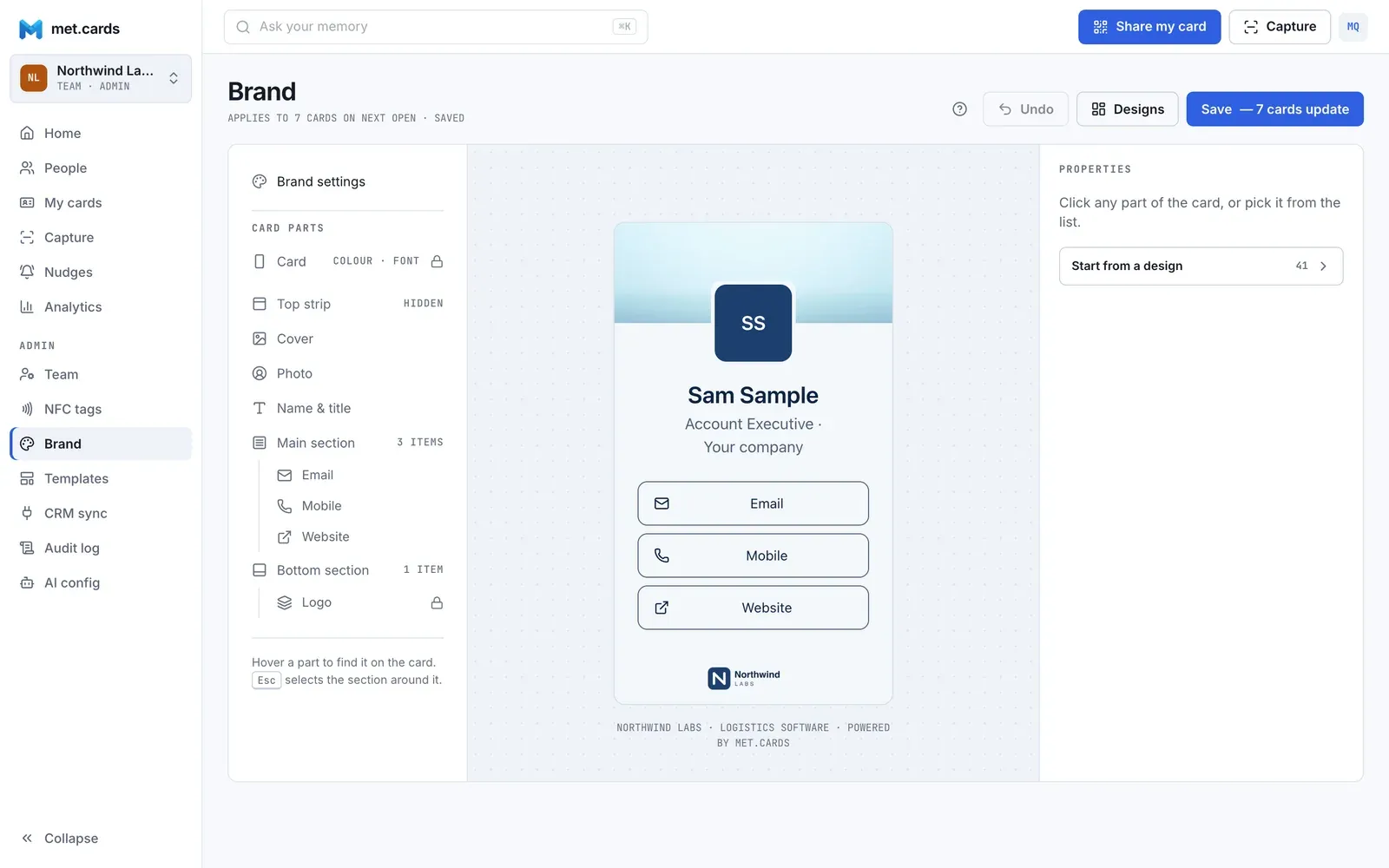
Brand settings
Section titled “Brand settings”Select Brand settings in the parts list to open these fields:

- Footer text: shown at the bottom of every public card. Up to 120 characters.
- Brand colour: pick a swatch, or Pick any colour for any colour. It sets one accent on every section of the sample card.
- Cards per member: how many cards each member may create, from 1 to 100. The default is 5. A member who reaches it can’t create another card.
- Hide “Powered by met.cards”: removes the met.cards badge from the foot of every public card.
Logo and design
Section titled “Logo and design”You can change the sample card’s logo, colours and parts here, the same way you edit a card. See Edit your card for how parts work.
What members may change
Section titled “What members may change”Brand settings also holds What members may change. These locks are the ones every member’s card follows. Each group has a switch: on means members may change it. Two buttons set them all at once:
- Lock everything: locks every group. Members keep only their own details: name, photo and link addresses.
- Free everything: lets members change every group.
The groups, and what each Links setting allows, are in Templates and locks. A lock never stops you, only members.
From 768px wide, Save names how many cards it reaches, for example “— 47 cards update”. That’s every card in the workspace, deactivated members’ included. Nothing is copied into the cards. Each card picks up the footer, the badge setting and the locks the next time it’s opened.
If another admin saved Brand after you opened it, you see Another admin changed the brand since you opened it. Select Load their version to see what they saved (your edits are dropped), or Save mine anyway to save yours over theirs.