
Account settings
Open your account
Section titled “Open your account”Your account settings apply to you in every workspace.
- Select your initials at the top right, then Account. On a phone, the initials are at the top of Home.
- Or open the workspace menu, then Account settings. On a phone, it’s at the top of the More sheet.
Your name
Section titled “Your name”Your name shows on your cards, unless a card sets its own name.
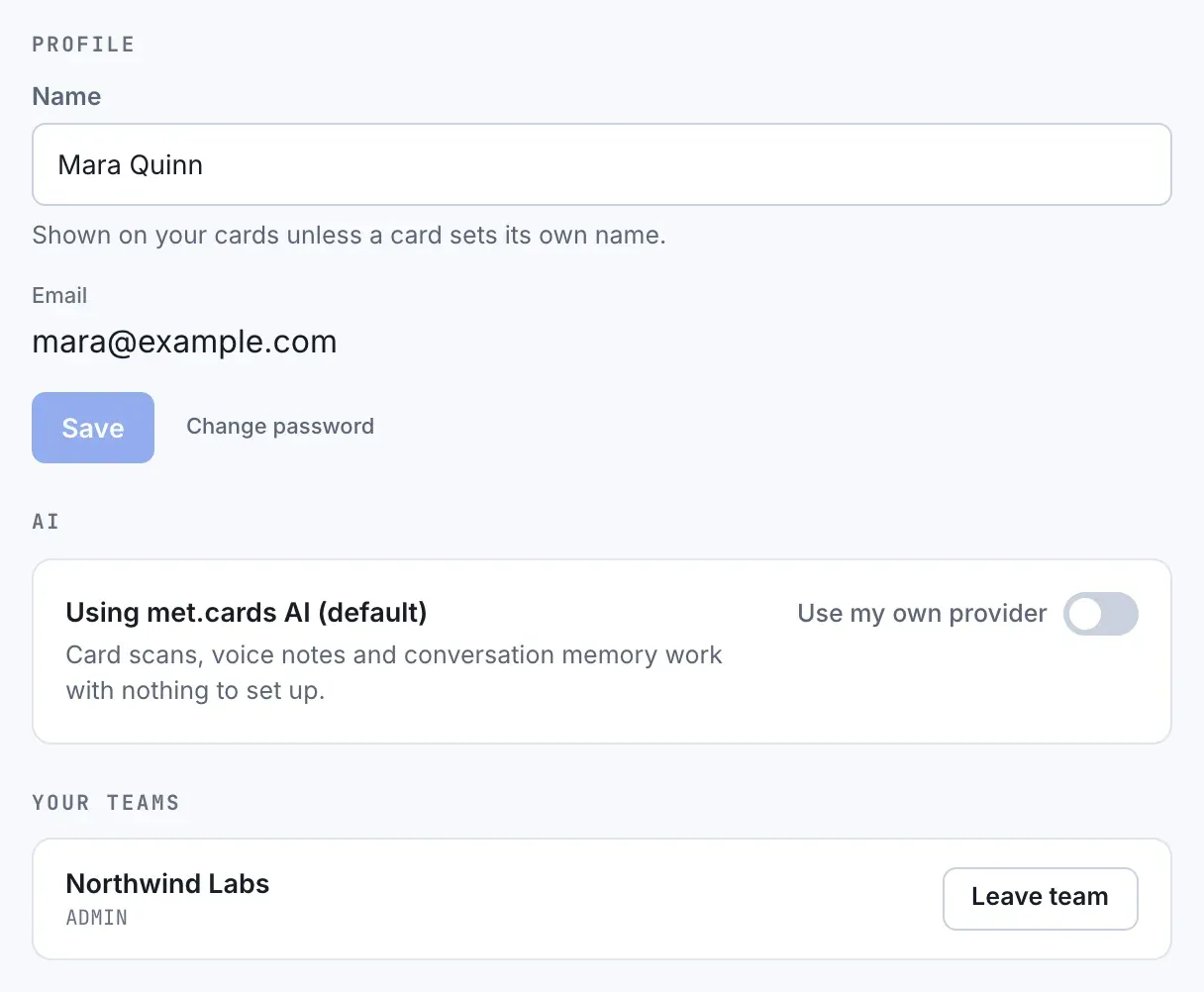
- Edit Name. It can be up to 80 characters.
- Select Save.
Your email is shown under your name. You can’t change it here.
Password
Section titled “Password”To change your password, you need your current one.
- On Account, select Change password. It’s also in the account menu.
- Enter your Current password.
- Enter a New password of at least 8 characters, and type it again in Confirm new password.
- Select Update password.
Changing your password signs you out on every other device, and disconnects AI apps you connected with OAuth. This device stays signed in. Personal access tokens keep working.
If you forgot your password, select Forgot? on the sign-in page. The reset link in the email works for 60 minutes. Resetting your password also signs you out everywhere else.
AI for a personal account
Section titled “AI for a personal account”This section appears only in a personal workspace. In a team workspace, team admins set up AI for everyone. See AI configuration.
A personal workspace uses met.cards AI by default, with nothing to set up. To use your own AI provider instead:
- Turn on Use my own provider.
- Choose the provider and paste your API key.
- Pick a Model.
- Select Save.
To go back, turn Use my own provider off, then select Use met.cards AI again. This removes your saved key.
Connected apps & tokens
Section titled “Connected apps & tokens”Connected apps & tokens lets Claude, ChatGPT or another AI app answer questions about your connections. Here you create personal access tokens and see the apps you connected. Tokens and apps belong to the workspace you’re in.
To remove one, select Revoke, then Confirm.
For setup steps, see Connect your AI assistant.
Signed-in devices
Section titled “Signed-in devices”Use this if a device was lost, or someone else used it.
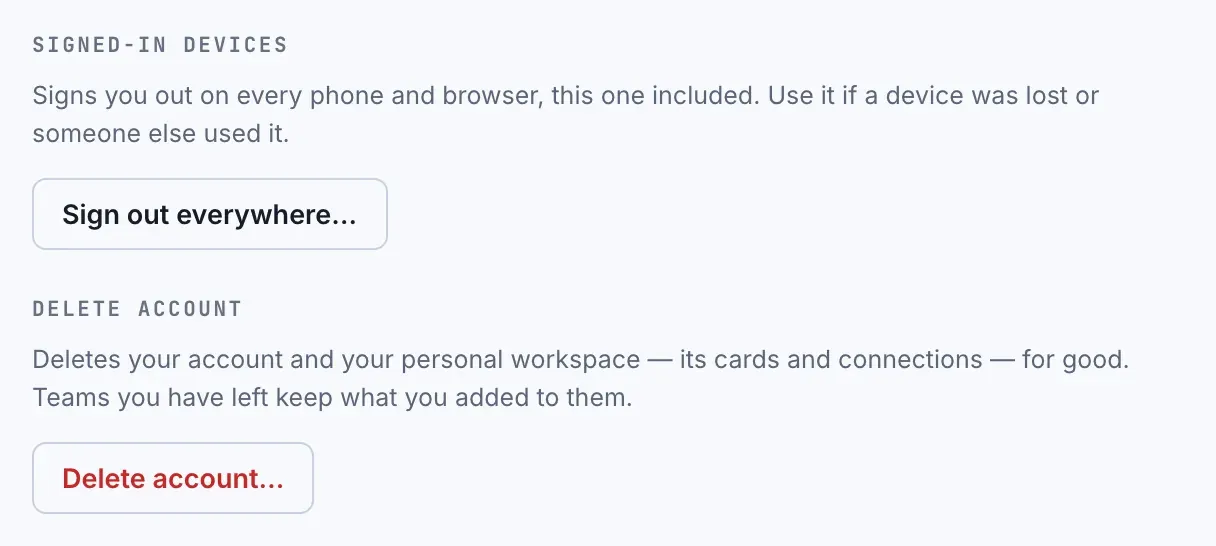
- Under Signed-in devices, select Sign out everywhere….
- Select Sign out on every device.
This signs you out on every phone and browser, this one included, and disconnects AI apps you connected with OAuth. A device that’s open right now can keep working for up to 15 minutes.
It doesn’t revoke personal access tokens. Revoke those under Connected apps & tokens.
Delete your account
Section titled “Delete your account”Deleting your account can’t be undone. You must leave every team first. See Teams and workspaces.
- Under Delete account, select Delete account….
- Enter Your password.
- Select Delete my account for good.
What happens:
- Your personal workspace is deleted, with everything in it: cards, connections, notes, voice memos and promises.
- Your cards in teams you left are deleted too.
- In each team you left, your connections, your promises and the invitations you sent move to that team’s longest-serving active admin. Notes, voice memos, follow-ups and recall briefs stay with those connections.
- Your tokens and connected apps are removed.
If a team you left has no active admin to take over your connections, you can’t delete your account until it has one.
Confirm your email
Section titled “Confirm your email”After you sign up, met.cards emails you a confirmation link. Open it within 7 days to keep your account active.
- Each link works for 72 hours. If one has expired or was already used, use the newest email.
- Two days before the deadline, a reminder email arrives with a fresh link.
- After 7 days without confirmation, your workspace is suspended, and you can’t sign in to it. The email that tells you so has a fresh link. Opening it restores your workspace.
- A workspace that stays suspended for 30 days is deleted.