
Ask your memory
What Ask answers from
Section titled “What Ask answers from”Ask answers from what you wrote or said about the people you met: your notes, the text of your voice memos, each person’s summary, your promises, your recall briefs, and the “Met at” entry a capture adds. An answer comes with the sources it used, so you can check it.
- It reads only your own connections. In a team workspace, it doesn’t read your teammates’ people.
- Your questions and conversations are private. Teammates can’t see them.
- It doesn’t use a scanned card’s text. About a person you only scanned, Ask has nothing to answer from, though it can still suggest them as someone to reconnect with. See Notes and voice memos.
Ask from the search box
Section titled “Ask from the search box”On a larger screen, the search box at the top of every page is also where you ask.
- Select the search box, or press ⌘K (Ctrl K on Windows and Linux).
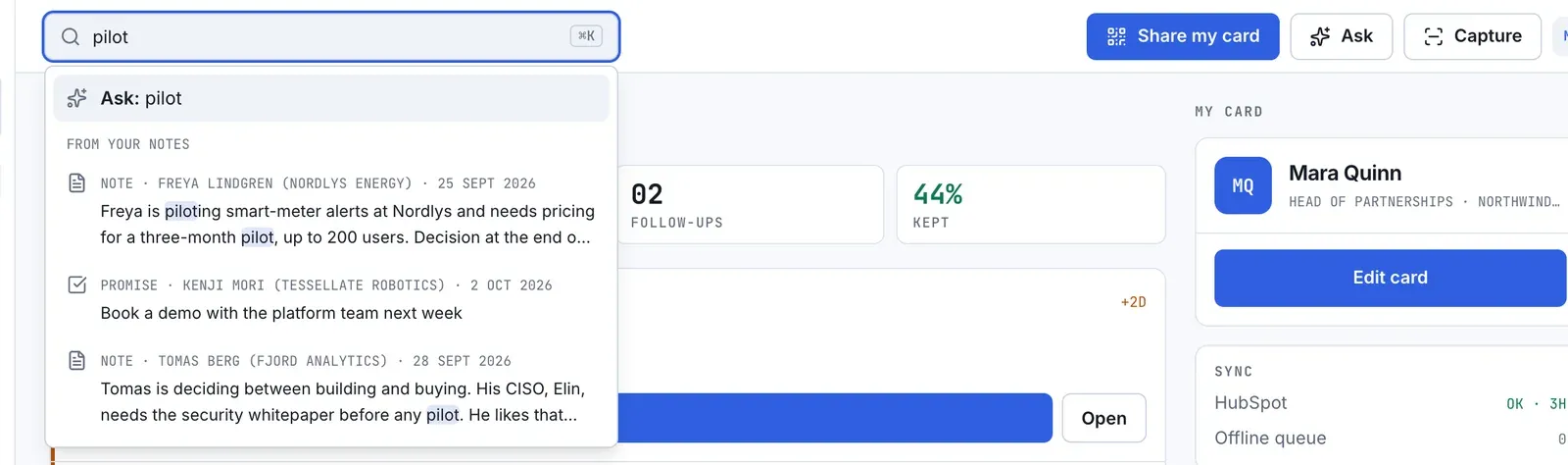
- Type at least 2 characters. Results drop down under the box: People when a name matches, then From your notes, with the words you typed highlighted. A note result can be a note, a voice memo, a summary, a promise, a recall brief or a “Met at” entry.
- Select a person or a note to open it. Or select the first row, Ask: followed by your text, to ask it as a question. That opens the Ask panel on a new chat and sends it.
An empty box shows up to 5 of your most recent conversations, and Try asking with three starter questions. Select a conversation to open it in the panel, or a starter question to ask it in a new chat.
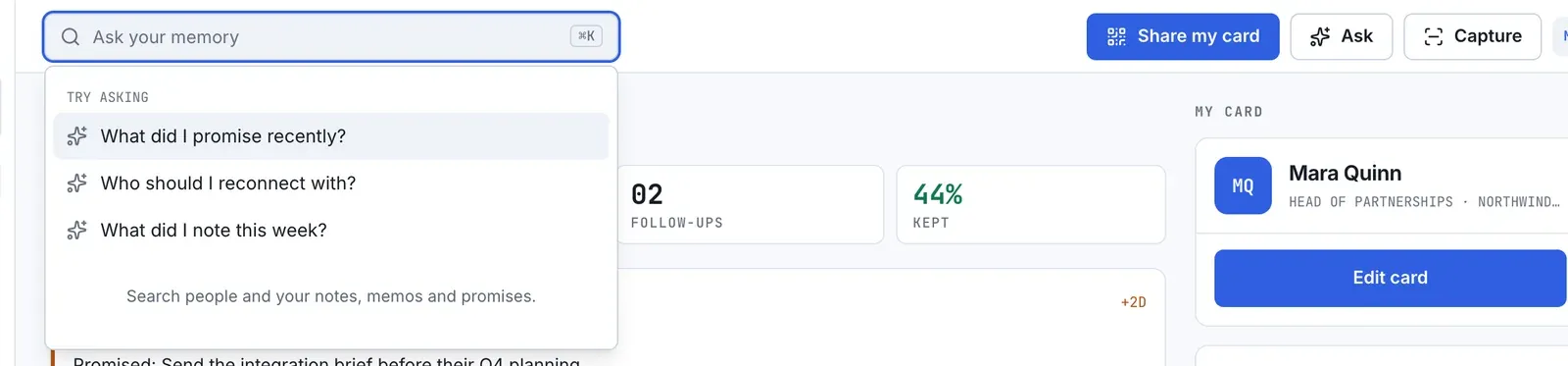
You can also select Ask in the top bar to open the panel without a question. Select it again to close the panel.
On a phone
Section titled “On a phone”- Select the Ask your memory field on Home to open search. It works like the search box above, including the Ask: row.
- To open the panel directly, select More, then Ask. More also has Search.
The Ask panel
Section titled “The Ask panel”The panel is where the conversation happens. Type your question in the box at the bottom and press Enter to send. Press Shift and Enter to start a new line. A question can be up to 1000 characters; a counter appears after 900.
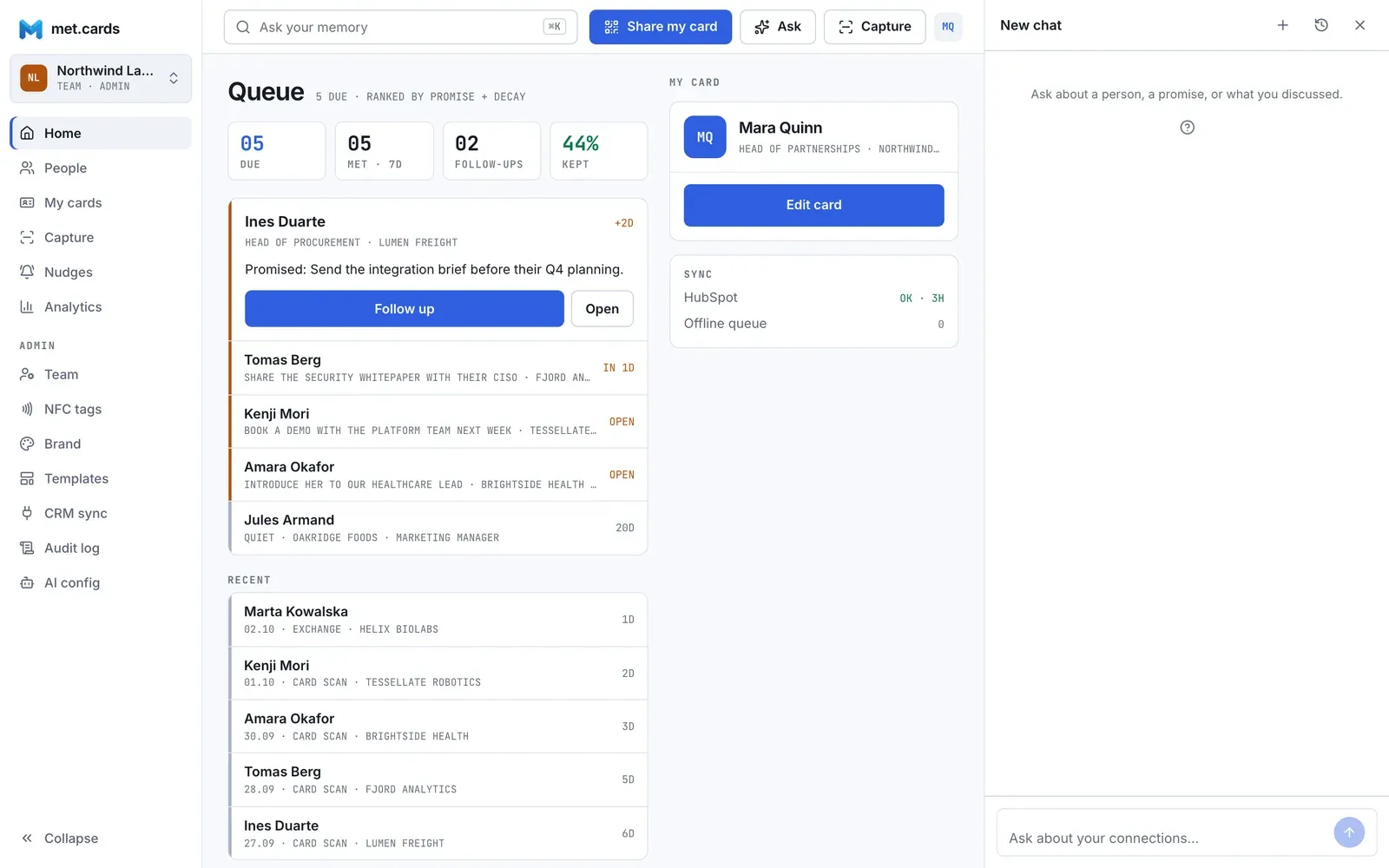
How the panel sits depends on the width of your window:
- 1280 px wide or more: it docks beside the page, in a column on the right.
- 768 to 1279 px: it slides over the page from the right.
- Phone: it fills the screen.
The panel stays open as you move between pages. This browser remembers, for each workspace, whether the panel was open and which conversation it showed, so after a reload it opens again where you left off. Use Close to dismiss it, or Ask in the top bar to open it again.
At the top of the panel:
- New chat (the plus) starts a fresh conversation.
- Recent conversations (the clock) lists your earlier chats. Pick one to go back to it, or select Delete this conversation and confirm to remove the open one for good.
Ask reads your last 3 questions and answers in a conversation, so you can follow up with “and what did she say about pricing?”.
Read an answer
Section titled “Read an answer”Answers appear as they’re written. A small numbered chip such as 1 sits beside each claim. Select it to see the source: what kind it was (a note, a voice memo, a summary, a promise, or one of the others above), its date, the person, and an excerpt. Select Open in timeline to go to the person’s page. On a phone, the panel closes so you can see the page.
Under the answer, Sources lists the sources the answer cites. Use Copy answer to copy the text.
Ask can answer questions about a person, a company, an event, a date range (“last week”), or your open promises. It can also suggest who to reconnect with: people you haven’t been in touch with lately, from the same list as the queue on Home.
If Ask can’t answer
Section titled “If Ask can’t answer”Ask doesn’t guess. It says so instead:
- I don’t have a note about that yet. Nothing in your notes matches. Add a note, or ask in different words.
- I couldn’t find that in your notes. Ask found notes but couldn’t tie an answer to them. It shows up to 3 of the closest sources, and Retry asks again.
- I don’t have anyone called … in your connections. You named someone who isn’t in your people.
- I can only answer questions about your own connections, notes and promises. The question was about something else.
- Which one did you mean? More than one person fits a name, such as two people with the same first name. Select the right one from the buttons, which show their title and company.
Ask can also say in its own words that your notes don’t answer the question.
When search is limited
Section titled “When search is limited”Two notices can appear at the top of the panel, and in the search box’s footer.
- Answers use keyword search only (or Searching by keywords only). Ask is matching the words you typed, not the meaning, so use words that are in your note. In the panel, this means meaning search isn’t set up or isn’t working for your workspace. In the search box, it can also show for a moment when meaning search is slow to respond. Admins also see an AI settings link. See AI configuration.
- Still indexing N notes. Some of your notes, memos, summaries or promises aren’t ready for meaning search yet. Until they are, they can be found by the words in them but not by meaning. If meaning search isn’t working, this notice stays until it’s fixed.
A note you just added takes a few seconds to show up at all. A voice memo shows up once its text is ready.
Stop, retry and give feedback
Section titled “Stop, retry and give feedback”- Stop replaces the send button while an answer is being written. The part already written stays, marked Stopped.
- Retry asks the same question again after a stopped or failed answer, or one Ask couldn’t tie to your notes. It’s under the latest answer only. The panel shows the new answer in place of the old one. If your question didn’t go through, it’s marked Not sent and the button reads Try again.
- The thumbs under a finished answer rate it. Select the thumbs up for a good answer. Select the thumbs down to open a box, What was wrong? (optional), and then Send feedback. A note can be up to 500 characters.
If you’re offline, the box says “Ask needs a connection” and can’t send.
Limits
Section titled “Limits”- You can ask 30 questions a minute. A retry counts as a question.
- Each question or retry also counts against your workspace’s daily AI allowance, if it has one. Card scans, voice memo transcription, summaries, follow-up drafts and recall briefs count against it too. When the allowance is used up, Ask shows “This workspace has used its daily AI allowance” with the number, and the question isn’t sent. A new question stays in the panel marked Not sent. The allowance resets at 00:00 UTC.
- Searching in the box doesn’t use the allowance.
Languages
Section titled “Languages”Ask isn’t limited to particular languages. It answers in the language of your question.
Keyword search works in any alphabet. It matches the start of each word as written and doesn’t know other forms of a word: “pric” finds “pricing”, but “met” doesn’t find “meeting”. Without meaning search (see When search is limited), that’s all Ask has, so type words as they appear in the note.
For a person’s own page, see People and connections. For promises, see Promises and next moves.