
Telegram QR codes
What their code contains
Section titled “What their code contains”A Telegram QR code holds a link to their Telegram account: t.me/ followed by their username, for example t.me/olena_k. It doesn’t hold their name or email.
So it’s a profile link code. met.cards knows which account it is, and you type the name.
Someone with no username may share a different code:
- A code that only Telegram can read, which may stop working after a while. met.cards saves it as a link only, so you type their name.
- A code that holds their phone number,
t.me/+followed by the number. met.cards saves the number as their Telegram profile and as their phone number.
Ask them to show it
Section titled “Ask them to show it”On an iPhone:
- Open Telegram and tap Settings.
- Tap the QR code icon at the top left.
On an Android phone:
- Open Telegram, tap the menu (☰), then Settings.
- Tap the QR code icon at the top right.
Apps move these screens between versions. If the steps don’t match their app, look for a QR code icon on their profile or in their settings. They may be able to change the code’s colours; that shouldn’t change what it holds. Scan it from Capture in QR mode.
Last checked: not yet on a phone. These steps follow the app’s own help and may differ in their version.
What met.cards saves
Section titled “What met.cards saves”met.cards shows the Telegram icon and their username, and asks for a name: “Telegram codes share a profile, not a name. Add their name so you can find them later.” Save works once you’ve typed one.
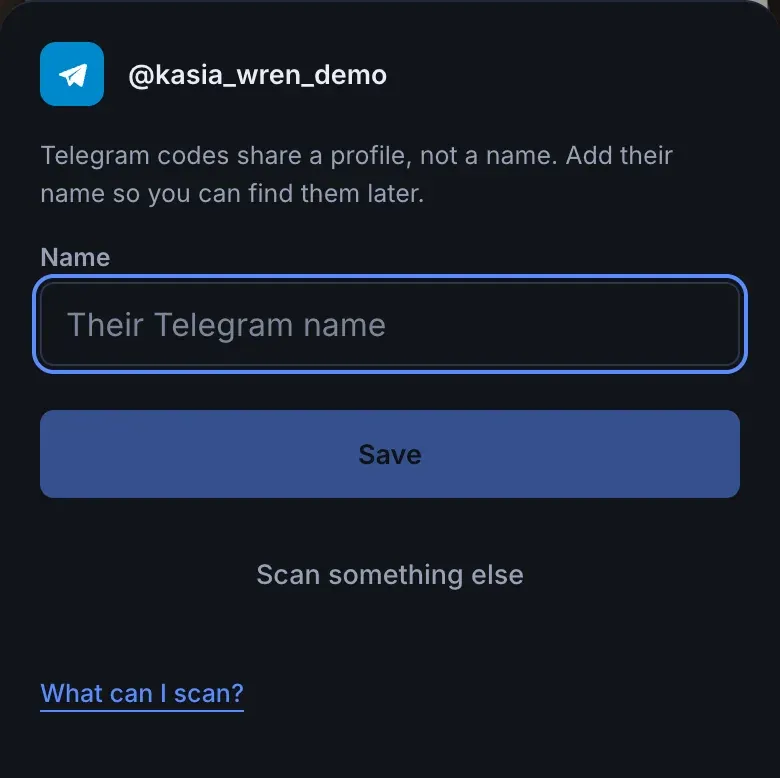
- Their Telegram profile, under Profiles on their page, with Open in Telegram.
- The name you type. Add their company, title or email later with Edit.
- For a phone-number code, the number, as their phone number too.
For a code only Telegram can read, met.cards shows Telegram contact and explains: “Telegram keeps the contact inside its own app, so we can’t read the name or number from this code. We’ll save a link that opens them in Telegram.” Select Type their name, or Photograph their screen to read the name from their phone.
Name and photo
Section titled “Name and photo”met.cards doesn’t fill in the name or photo from Telegram today. Telegram shows a public preview of each username’s name and photo, and reading it is planned, but only if Telegram’s terms allow it. It will be off until a workspace admin switches it on.
Troubleshooting
Section titled “Troubleshooting”- Scanning opens Telegram instead. You used the phone’s camera app. Scan from Capture in QR mode.
- Nothing happens. Ask them to turn their screen brightness up, and tilt your phone so their screen doesn’t reflect the lights. Or take a photo of the code and pick it with the gallery button in QR mode.
- They have no username. Their code may be one that stops working after a while. Ask them to set a username in Telegram’s settings, or type their phone number with Edit.
- They change their username later. The saved profile still points at the old one, so it stops opening them. Change it on their page. See Profiles.
- You already have them. As you type their name, met.cards suggests people you already have whose name matches what you typed, under Already in your connections? Select Add to on the right person, for example Add to Olena Koval, to add this Telegram profile to them instead of saving someone new. See When you already have them.