
Scan other apps
Someone you meet may not have a met.cards card. Ask them to open the “my QR code” screen in an app they use, then scan it from Capture in QR mode. met.cards adds them to your connections with that profile attached.
Under the camera in QR mode, a line reads Works with contact QR codes, met.cards, LinkedIn, Telegram, WhatsApp and more. The What can I scan? link after it opens this page. Every screen that asks you something after a scan also has a What can I scan? link, to the page for that app or to this page.
What each code gives you
Section titled “What each code gives you”Apps put different things in their codes. What met.cards can save depends on the code, not on met.cards.
| What met.cards gets | What the code holds | What you do |
|---|---|---|
| Everything | Their name and contact details: a contact QR code, or a met.cards card | Nothing for a contact QR code with a name: it’s saved straight away. For a met.cards card, select Add to connections. |
| A profile link | Their account in that app, but not their name | Type their name, then select Save. |
| A link only | A code that only the app itself can read | Select Type their name, or Photograph their screen to read the name from their phone. |
A contact QR code without a name opens a Contact card screen that asks for one. A code that holds only a phone number or an email address opens a Phone number or Email address screen, which also asks for their name.
Whatever the code holds, the person’s page lists what was saved under Profiles. See Profiles.
Every app
Section titled “Every app”Everything:
- Contact QR codes from a phone’s contacts
- Event badges (some badges hold only a registration number)
- met.cards cards
A profile link:
- LinkedIn, Telegram, Instagram, Facebook, Threads, X, TikTok (TikTok’s own code is expected to be a short link that gives a link only), Snapchat
- GitHub, Bluesky, Mastodon, Calendly, Xing
- Other digital card apps such as Popl, Blinq or HiHello. met.cards keeps their card’s web link.
A link only:
- WhatsApp (a business’s click-to-chat code holds a phone number instead)
- Viber, Signal, LINE, KakaoTalk, WeChat
If you have a link instead of a code, see Paste a link.
Codes that aren’t contacts
Section titled “Codes that aren’t contacts”Some codes hold a website, a ticket number or plain text. met.cards shows what the code says, under This code isn’t a contact, and asks: Save it as a note on a new connection?
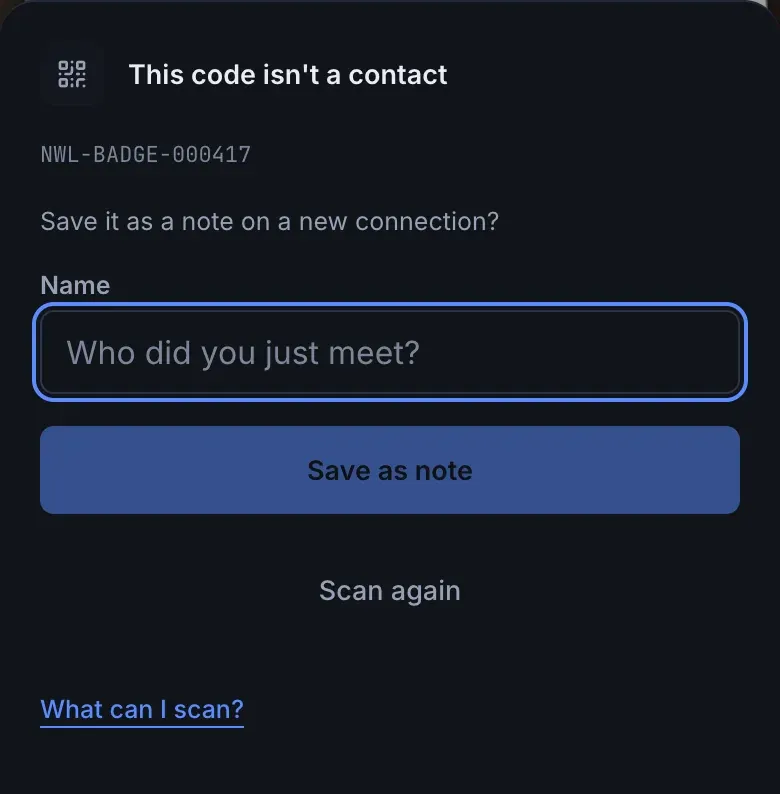
- Type their name and select Save as note to make a new connection with the text as a note.
- Select Scan again to try another code.
When you already have them
Section titled “When you already have them”How met.cards spots someone you already have depends on the code.
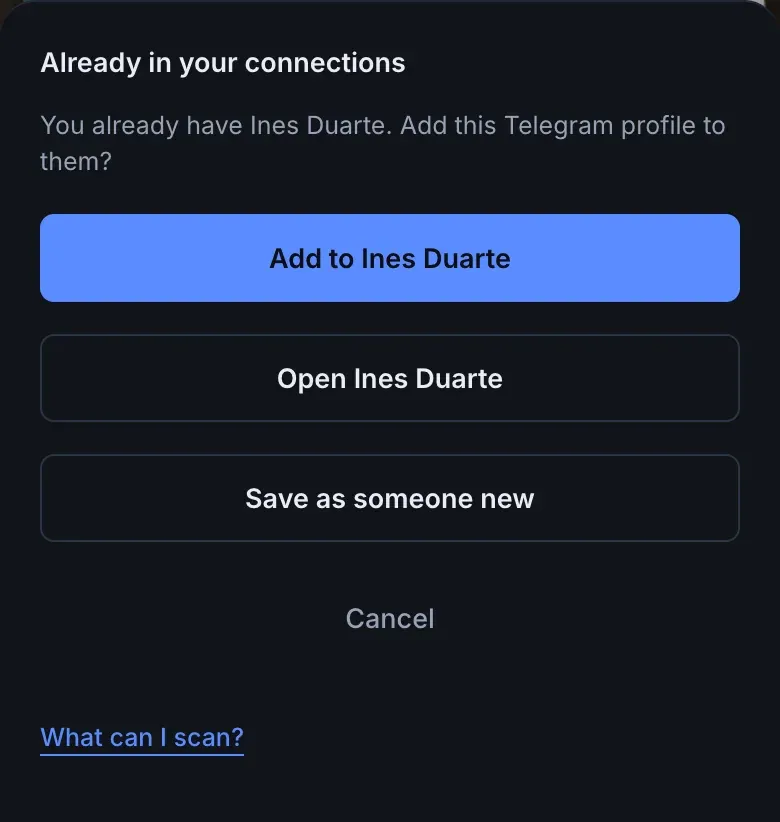
A contact card or a met.cards card usually holds an email or a phone number, so met.cards checks for you. It compares, in this order, the email, the profile (the same account in the same app), the phone number, and the name with the company. The phone number counts only for codes you scan and links you paste, not for someone you add by hand. If it finds them, it says Already in your connections and asks, for example: You already have Olena Koval. Add this Telegram profile to them?
- Add to Olena Koval adds the profiles from this scan to the person you have. It appears only when the scan has a profile; otherwise the sheet says You already have Olena Koval.
- Open Olena Koval goes to the person you have, without changing anything.
- Save as someone new makes a separate connection anyway.
- Cancel saves nothing.
A profile code, a card app link or a contact code, such as LinkedIn, Telegram or WhatsApp, holds no email and usually no phone number, so met.cards suggests people instead.
Once you’ve typed a word of two or more letters in their name, up to three people you already have appear under Already in your connections?, closest name first, with their company if you saved one. A person matches when their name contains every word you typed, in any order and ignoring capitals; only the name is compared, not the company. People still being processed or waiting for review aren’t suggested.
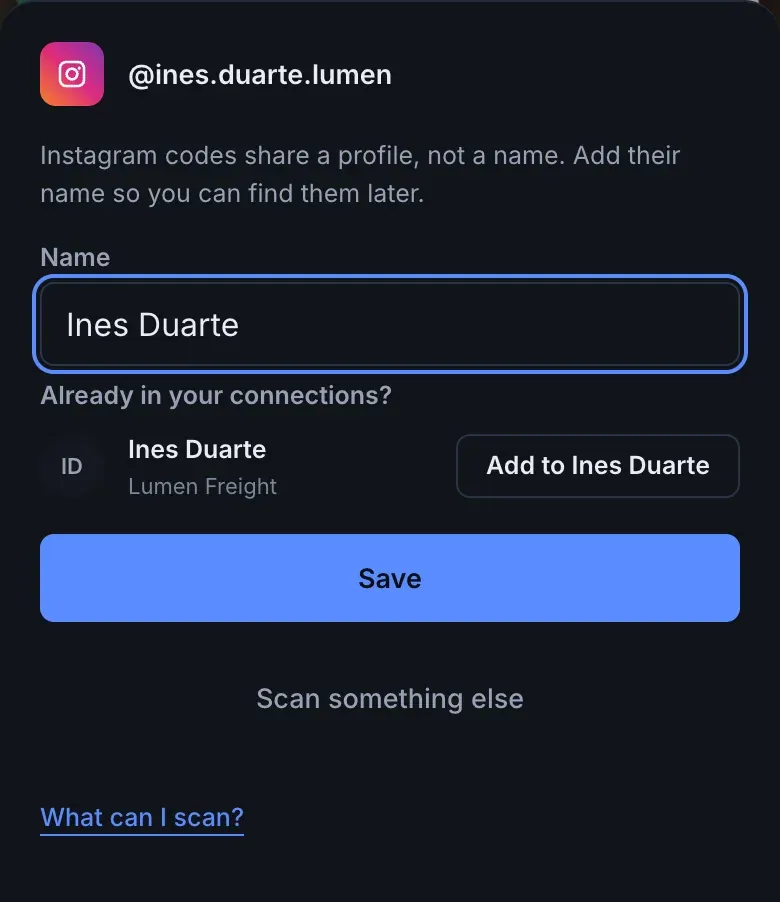
- Select Add to Olena Koval on the right person. The profile from this scan is added to them, and a message says
Added to Olena Koval, with Open. - Or ignore the suggestions and select Save to make a new person.
met.cards never adds a profile to someone without you choosing. Suggestions don’t appear while you’re offline. If you already saved the same profile account (not a link-only code or a card link), met.cards also asks when you select Save, as above.
You can add a profile to someone later, too: open them and select Add a profile. See Profiles.
If you scanned while offline, met.cards decides when it sends the scan. A match on the email or the profile is the same person, so the profile is added to them. A match on the phone number, or on the name and company, could be someone else, such as a colleague on the same office number, so the scan is saved as a new connection.
What met.cards never does
Section titled “What met.cards never does”- It never looks people up on LinkedIn, Instagram, Facebook, Threads, X or TikTok, and never signs in to them for you.
- It doesn’t buy information about people from data brokers or enrichment services.
- Reading a code sends nothing to the app it came from. The one exception is a met.cards card: its public details come from met.cards itself, and the scan counts as a save in the card owner’s analytics, as when anyone saves their contact.
- It doesn’t save a scan you haven’t seen. Only a contact QR code with a name that you scan becomes a connection without you typing or selecting anything. A pasted contact card is always shown first.
Name and photo
Section titled “Name and photo”For a profile link or a link-only code, you type the person’s name. met.cards doesn’t fetch names or photos from other apps today.
A lookup of public profiles on GitHub, Bluesky and Mastodon is planned, and on Telegram if Telegram’s terms allow it. It will be off until a workspace admin switches it on. LinkedIn, Instagram, Facebook, Threads, X and TikTok will never be looked up.
If a code doesn’t scan
Section titled “If a code doesn’t scan”- Ask them to turn their screen brightness up.
- Hold your phone so their screen doesn’t reflect the lights.
- Move closer until the code fills the frame.
- Or take a photo of the code and pick it with the gallery button at the top right of Capture, still in QR mode.
See Capture people you meet for the rest of Capture.